






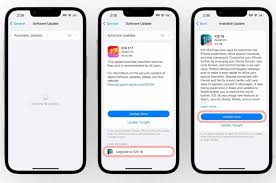
Keeping your iPhone updated is essential for maintaining performance, security, and access to the latest features. While most users focus on iOS system updates, it’s equally important to update all apps on iPhone regularly. App updates often include new tools, bug fixes, and improvements in security that enhance your overall experience. In this guide, we’ll walk you through everything you need to know about how to iPhone update all apps, why it matters, and how to automate the process.
Why Update All Apps on iPhone?
Before we dive into the how-to, let’s explore why updating all apps on your iPhone is important.
1. Security Improvements
Outdated apps can be vulnerable to bugs and hackers. Developers release patches and fixes regularly, and updating apps ensures you’re protected.
2. New Features
App updates often introduce new features that improve usability, speed, and compatibility with the latest iOS versions.
3. Bug Fixes
From crashes to lags, many bugs are resolved in new versions of apps. Keeping your apps up to date prevents these issues.
4. Compatibility
Apple updates iOS frequently. If apps are not updated, they may stop working properly or crash more often.
5. Optimized Performance
Developers optimize their apps with each update, which often leads to better battery life and smoother performance.
How to Manually Update All Apps on iPhone
Follow these steps to manually update your apps using the App Store:
Step 1: Open the App Store
Tap the App Store icon on your iPhone’s home screen.
Step 2: Tap on Your Profile Icon
In the top-right corner of the App Store, tap your Apple ID profile photo.
Step 3: Scroll to See Available Updates
You’ll see a list of apps with pending updates under the “Available Updates” section.
Step 4: Tap “Update All”
Tap the “Update All” button to begin updating all your apps simultaneously.
⚠️ Make sure you’re connected to Wi-Fi or have a strong mobile data signal.
How to Enable Automatic App Updates on iPhone
To avoid manually updating your apps every time, you can enable automatic updates:
Step 1: Go to Settings
Open the Settings app.
Step 2: Tap on “App Store”
Step 3: Enable Automatic Downloads
Under the Automatic Downloads section, toggle on App Updates.
Now your iPhone will automatically download and install new app updates in the background.
Troubleshooting: iPhone Not Updating Apps?
If your iPhone won’t update apps, try these solutions:
1. Check Internet Connection
Slow or unstable internet is the most common issue. Switch between Wi-Fi and mobile data to test.
2. Restart Your iPhone
A quick restart often resolves minor software glitches.
3. Update iOS
Sometimes, apps won’t update unless you’re on the latest version of iOS. Go to:
Settings > General > Software Update
4. Check Apple ID
Ensure you’re logged in with the correct Apple ID. Sometimes, app updates won’t proceed if there’s an issue with your account.
5. Free Up Storage
Insufficient storage may prevent updates. Go to:
Settings > General > iPhone Storage
Delete unused files or apps to make space.
iPhone Update All Apps via Wi-Fi Only
If you want to save mobile data, you can restrict app updates to Wi-Fi:
- Go to Settings > App Store
- Under Cellular Data, turn off the toggle for Automatic Downloads
Now, app updates will only happen when you’re connected to Wi-Fi.
Can You Update All Apps with Siri?
As of 2025, Siri does not support direct app updates through voice commands. You’ll need to use the App Store manually or enable automatic updates.
How Often Should You iPhone Update All Apps?
There’s no fixed rule, but here are some general tips:
- Daily Users: Enable automatic updates.
- Casual Users: Check for updates weekly.
- Developers/Testers: Update manually to control versions.
Best Practices for App Updates on iPhone
- Turn On Low Power Mode Off While Updating – Sometimes it delays downloads.
- Plug Into a Charger – Some updates are large and drain battery.
- Avoid Public Wi-Fi – For security reasons, use trusted networks only.
- Review Update Notes – Some users prefer to see what’s changing before updating.
What to Do After Updating All Apps
After updates, you might want to:
- Check if any layout or UI has changed.
- Log in again if the app resets.
- Explore new features in updated versions.
Summary
Updating all apps on your iPhone is a simple but essential step to keep your device running smoothly. Whether you prefer to do it manually or automatically, the key is to make it a habit. By ensuring that every app is up to date, you improve performance, strengthen security, and enjoy the latest features from your favorite developers.
In just a few taps, you can make sure your apps are always current and your iPhone works at its best.
Final Tip
If you’re ever in doubt or notice apps acting strange, just remember: “iPhone update all apps” is your go-to solution for a quick fix.